
Remember the time I dropped my laptop bag? Not a huge drop, maybe a foot, but enough to make my stomach do a flip. When I booted it up, it sounded like a bag of marbles rattling around. Thankfully, it wasn’t the HDD that decided to go bye-bye, but it did make me think about how loosely things can be secured inside these portable machines.
This is why the question ‘do asus laptop ssd need to be screwed down?’ is more important than some folks realize. It’s not just about preventing a catastrophic failure from a bump; it’s about long-term reliability and making sure your expensive tech stays put.
Let’s cut to the chase: yes, they absolutely do. And it’s not as complicated as you might think.
Why That Tiny Screw Matters for Your Asus SSD
Look, I get it. When you’re upgrading your laptop or swapping out a drive, you’re focused on getting the new shiny thing in there and seeing it boot up. The little screw that comes with most M.2 SSDs, or is often pre-installed in the laptop’s M.2 slot, can seem insignificant. Like that one extra piece of hardware you find at the end of a LEGO build that you’re pretty sure you didn’t need. But in the case of your Asus laptop SSD, that screw is doing more work than you might think.
First off, let’s talk about vibration. Laptops, even when sitting on a desk, vibrate. The fans spin, the hard drive (if you have one) whirs, and even the motherboard components can generate subtle vibrations. An M.2 SSD, being a solid-state drive, has no moving parts, so it’s not susceptible to the same mechanical shock as an old spinning platter HDD.
However, constant, low-level vibration can still take its toll. Think of it like a tiny jackhammer working on the connections over thousands of hours. If the SSD isn’t firmly seated and secured, the constant jostling can, over time, lead to intermittent connection issues, data corruption, or even a complete failure of the drive. I’ve seen it happen.
A friend’s laptop started randomly freezing, and after a few months of chasing software ghosts, it turned out their NVMe drive was slightly loose and would lose connection during heavier processing loads.
Beyond vibration, there’s the physical shock factor. Laptops get moved. They get put in bags, they get jostled in cars, and sometimes, let’s be honest, they get knocked off tables. While an M.2 SSD might look solid, its connection to the motherboard is delicate.
The connector itself is a series of gold-plated pins. If the SSD isn’t screwed down, a sudden jolt can cause the drive to dislodge from its slot.
This isn’t like a SATA drive where you have a cable and a separate screw holding the drive bay. An M.2 slot is a direct connection. If it pops out, even partially, you’ve got immediate problems. The system won’t boot, or if it does, the drive might not be recognized.
And trying to ram it back in without properly aligning it can bend or break those tiny pins, leading to a much more expensive repair or replacement.
So, do asus laptop ssd need to be screwed down? Absolutely. It’s the physical anchor that prevents movement, secures the connection, and protects against the everyday rigors of laptop use. It’s a cheap, tiny piece of hardware that provides outsized protection for one of the most important components in your machine.
The Nitty-Gritty: How M.2 Ssds Work and Why They Need a Screw
Let’s break down what makes an M.2 SSD tick and why the securing screw is a must. An M.2 SSD is a small, rectangular form factor that plugs directly into an M.2 slot on your motherboard. Unlike older 2.5-inch SSDs or HDDs that connect via SATA cables (data and power), M.2 drives use a direct edge connector, much like a RAM stick but much smaller and more complex. This connector has multiple pins that transmit both data and power signals. For Asus laptops, this direct connection is key to their slim design and speed.
The M.2 slot itself is designed to hold the drive firmly in place when secured. It’s a push-in connector, and once fully seated, it should feel snug. (See Also: How To Fix Eyeglasses Arm Without Screw )
However, the slot alone isn’t designed to withstand significant lateral force or vibration without additional support. This is where the screw comes in. When you screw down the M.2 SSD, you’re doing a couple of vital things. Firstly, you’re making sure the SSD maintains constant, perfect contact with the motherboard’s connector pins.
Even a slight gap or wobble can lead to intermittent read/write errors, slow performance, or the drive disappearing entirely from your system’s view. Think of it like a loose USB stick – sometimes it works, sometimes it doesn’t. You don’t want that kind of unreliability with your primary storage.
Secondly, the screw acts as a physical anchor, preventing the SSD from vibrating loose or being dislodged by physical impacts. Laptops are mobile devices.
They are moved, carried, and occasionally bumped. While M.2 SSDs are solid-state and less prone to mechanical shock than HDDs, the physical connection to the motherboard is still a point of vulnerability.
Without that screw, the drive could shift, even slightly, during transit or use. This shifting can stress the connector, potentially causing damage over time or leading to immediate connection failure.
I learned this the hard way when I upgraded a friend’s laptop and forgot to put the screw back in. A few weeks later, the SSD was randomly disappearing during boot-ups, causing hours of troubleshooting before we realized the simple oversight.
Furthermore, some M.2 SSDs, especially NVMe drives, can generate a fair amount of heat under heavy load. While many laptops come with heatsinks for these drives, proper mounting helps make sure good thermal contact not only for the SSD’s surface but also for the connection to the motherboard, which can also dissipate some heat. A loose drive might not make full contact with its heatsink or the motherboard slot, potentially leading to thermal throttling or even component damage due to overheating. So, when asking ‘do asus laptop ssd need to be screwed down?’, the answer is a resounding yes, for the integrity of the connection, protection against physical stress, and thermal management.
Common Mistakes When Installing an M.2 SSD (and How to Avoid Them)
Mistakes happen, especially when you’re dealing with tiny screws and delicate components inside a cramped laptop. I’ve made my fair share, and they usually involve a combination of rushing, not having the right tools, or just plain not knowing better. For Asus laptops, and really any laptop with an M.2 SSD slot, there are a few common pitfalls to watch out for.
The most obvious mistake, and the one we’ve been talking about, is forgetting to screw down the SSD. It seems simple, but in the excitement of a new drive or the relief of getting a laptop reassembled, it can be overlooked. Always double-check that the screw is in place and snug. Don’t overtighten it, though – you don’t want to strip the threads or crack the SSD’s PCB. Just firm enough to hold it securely. Often, the screw comes with the laptop or the SSD itself. If you lose it, you need a replacement. A tiny M.2 screw is usually a 2mm thread pitch, but it’s best to check your laptop’s manual or the SSD manufacturer’s specs.
Another common mistake is not handling the SSD properly. These drives are sensitive to static electricity. Before you even touch the SSD or open your laptop, you should ground yourself. Touching a metal part of your computer case (while it’s unplugged, of course) or using an anti-static wrist strap is a good idea. Static discharge can fry the components without you even feeling it. I once worked on a PC where a new GPU died within minutes of installation. Turns out, the tech hadn’t grounded himself and had zapped it with static. So, handle your M.2 SSD by its edges and avoid touching the gold contacts or the chips on the board.
Forcing the SSD into the slot is another big no-no. M.2 SSDs are designed to slide in at a specific angle (usually around 30 degrees) and then pivot down to meet the screw hole. If you try to force it straight down or at the wrong angle, you risk bending or breaking the pins in the M.2 slot on the motherboard. Take your time, align the drive carefully, and it should slide in smoothly. If it feels like you’re applying too much force, stop and re-evaluate your alignment. This is especially true for Asus laptops which often have very tight internal layouts.
Finally, some people try to use the wrong type of SSD. M.2 is just a form factor; it doesn’t dictate the interface. You need to know if your Asus laptop’s M.2 slot supports NVMe (which is much faster) or just SATA M.2 drives.
They look identical but perform very differently. Trying to put an NVMe SSD in a SATA-only slot (or vice-versa, though less common for physical fit) will result in it not working. Always check your laptop’s specifications before buying a new SSD. For example, my cousin bought a blazing-fast NVMe drive for his old laptop, only to find out its M.2 slot only supported SATA M.2 drives. (See Also: How Measure Metric Computer Screws )
He ended up selling the NVMe and buying a SATA M.2, a costly mistake that could have been avoided with a quick spec check.
Real-World Scenarios: When That Screw Saves the Day
You might think that a tiny screw is overkill, but I’ve seen firsthand how its presence (or absence) can make a difference. It’s easy to get caught up in the technical specifications – PCIe lanes, read/write speeds, TBW ratings – and forget about the simple, physical realities of how these components interface with the hardware.
Scenario 1: The Accidental Drop. Picture this: you’re at a coffee shop, laptop on your lap. Someone bumps your table.
The laptop slides off, not a huge fall, maybe just a foot or so onto a carpeted floor. If your M.2 SSD is properly screwed down, it’s much more likely to stay seated in its slot. The screw acts as a lock, preventing the momentum from jarring the drive out.
If it wasn’t screwed down, that same bump could cause the SSD to partially dislodge. The system might boot, but you could experience random crashes, BSODs, or the drive might not be detected at all, leaving you with a bricked laptop until you can physically reseat the drive.
I recall a student whose laptop took a tumble down a short flight of stairs. Miraculously, it still powered on, but the OS wouldn’t load. Opening it up, the NVMe drive was slightly ajar. A quick push back into place and the screw secured it.
Without that screw, that drive likely would have been toast.
Scenario 2: The Bumpy Commute. You’re on a train or bus, and the ride is particularly rough. Every bump and jolt travels through your backpack and into your laptop. Constant, low-level vibration and impact can be detrimental. For an M.2 SSD, being screwed down means it’s anchored. The connection remains stable. If it’s loose, these vibrations can contribute to microscopic wear on the connector pins, or worse, cause intermittent data transfer issues. Imagine you’re working on an important document, and the drive momentarily loses connection due to these vibrations. You could lose your work, or worse, corrupt a file. It’s the sustained exposure to movement that really highlights the value of that tiny screw.
Scenario 3: Laptop Maintenance Mishap. You decide to clean out your Asus laptop’s fans or upgrade your RAM. You open it up, and everything seems fine. You complete your tasks and reassemble the laptop. You power it on, and it doesn’t boot. Panic sets in. You might have jostled the SSD while working inside, and without the screw, it could have shifted enough to break the connection. A quick check reveals the M.2 drive is slightly out of its slot. Re-seating it and then making sure it’s screwed down properly resolves the issue. This has happened to me more times than I care to admit when I’m just a bit too careless during internal work.
These aren’t theoretical problems. They are real-world situations where the physical integrity of your components matters. So, when asking ‘do asus laptop ssd need to be screwed down?’, understand that the answer is rooted in protecting your investment from the inevitable bumps and vibrations of everyday use.
What to Look for: The Right M.2 SSD and Screws for Your Asus Laptop
Navigating the world of M.2 SSDs and their tiny fasteners can feel a bit overwhelming, but it boils down to a few key things. First, you need to know what kind of M.2 slot your Asus laptop has. This is absolutely most important. Most modern Asus laptops will have an M.2 slot that supports NVMe (using the PCIe interface), which is significantly faster than SATA. However, some older or budget models might only support M.2 SATA drives. You can usually find this information in your laptop’s user manual, on Asus’s support website by entering your model number, or by looking up reviews for your specific laptop model.
Why does this matter? Because an NVMe M.2 SSD and a SATA M.2 SSD use different connectors and protocols, even though they fit into the same physical M.2 slot (generally speaking, though there are different keying options like M-key, B-key, and B+M key). Trying to put an NVMe drive into a SATA-only slot won’t work, and while an NVMe drive might physically fit into a slot that only supports SATA, it will operate at SATA speeds, defeating the purpose of buying a faster drive. So, compatibility is king. For performance-hungry users, always aim for an NVMe SSD if your Asus laptop supports it.
When it comes to the SSD itself, consider your needs. For general use, 512GB is often a good starting point. If you store a lot of media, games, or large project files, 1TB or even 2TB is a wise investment. Pay attention to the read/write speeds, but also the Terabytes Written (TBW) rating, which indicates the drive’s endurance. Higher TBW means it can handle more data being written to it over its lifetime. For most users, the speeds advertised by major brands like Samsung, Important, WD, and even SK Hynix are more than sufficient, and the TBW will far exceed typical usage. (See Also: How To Adjust Eyeglass Screw )
Now, about the screws. Most M.2 SSDs come with a small screw, often in a tiny plastic bag. If your SSD didn’t come with one, or you lost it, you’ll need to buy one. These are specialized M.2 screws.
They have a very fine thread pitch, typically M2x3mm or M2x4mm. You can find them online at electronics retailers or sometimes in small computer parts shops. It’s a good idea to buy a pack of a few, as they are incredibly easy to lose. Some laptops might have a small standoff screw that’s already in the M.2 slot, and you screw the SSD into that.
Others might require you to screw directly into the motherboard. Again, check your laptop’s manual or online teardowns for your specific model.
Here’s a quick rundown of what to look for:
| Component | What to Look For | Why It Matters | Opinion/Verdict |
|---|---|---|---|
| M.2 Slot Compatibility | NVMe (PCIe) or SATA M.2 | Makes sure the SSD works and performs at its best. | NVMe is faster; always choose if supported. |
| SSD Capacity | 512GB, 1TB, 2TB+ | Sufficient space for OS, applications, and files. | Don’t skimp on capacity if you can afford it. |
| SSD Endurance (TBW) | Higher is better for longevity. | Indicates how much data can be written before potential failure. | Exceeds typical user needs for most modern drives. |
| M.2 Screw | M2x3mm or M2x4mm (fine thread) | Secures the SSD to prevent movement and connection issues. | Absolutely key. Don’t skip this tiny but mighty part. |
Don’t underestimate the importance of the screw. It’s the unsung hero that keeps your fast storage reliable.
The Faq: Your Burning Questions About Asus Laptop Ssds Answered
Do I Need a Special Screwdriver for an Asus Laptop SSD Screw?
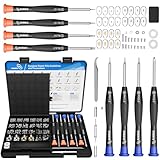
Generally, you’ll need a small Phillips head screwdriver. The screws used for M.2 SSDs in laptops are quite small, often with a #0 or #1 Phillips head. Many laptop repair kits include a set of these precision screwdrivers. It’s important to use the correct size screwdriver to avoid stripping the screw head, which can make it very difficult to remove or install later.
Can I Leave the M.2 SSD Unscrewed If My Laptop Doesn’t Get Moved Much?
While it might seem tempting if you rarely move your laptop, it’s still a bad idea. Internal vibrations from fans and other components can still cause issues over time, leading to connection instability or data errors. Plus, even if you don’t move it, a sudden power surge or a simple bump on the desk can cause enough movement to disrupt the connection. It’s a small risk to take for such a important component. The screw is cheap insurance.
What Happens If I Lose the M.2 SSD Screw?
If you lose the screw, your M.2 SSD is basically unsecured, which can lead to the problems we’ve discussed. You’ll need to find a replacement. They are typically M2x3mm or M2x4mm with a fine thread. You can often find them in small electronics repair kits or order them online from specialized hardware suppliers. It’s worth getting a few, as they are notoriously easy to misplace.
Are All M.2 Ssds the Same Size?
No, M.2 is a form factor, but SSDs can come in different lengths. The most common lengths for laptops are 22mm wide by 80mm long (referred to as 2280). However, you might encounter 2242, 2260, or 22110 lengths, though these are less common in typical Asus laptops. Always check your laptop’s specifications or measure the existing SSD to make sure the new one will fit physically.
Conclusion
So, there you have it. Do asus laptop ssd need to be screwed down? The answer is a definitive yes. It’s not just about preventing catastrophic damage from a drop; it’s about making sure consistent connection, mitigating vibration wear, and maintaining the overall reliability of your data storage. That tiny screw is doing some heavy lifting in the background, keeping your fast storage securely in place.
Don’t get caught out by overlooking this simple step. When you’re installing or reassembling your laptop, take that extra minute to find and properly secure the M.2 screw. It’s a small effort that can save you a world of headaches and potential data loss down the line. Think of it as the final, necessary step to make sure your technology performs as it should.
If you’re in doubt about your specific Asus model or the type of M.2 slot it has, always consult your laptop’s manual or the official Asus support website. Getting the right SSD and securing it properly are the foundations of a reliable computing experience.
![AXTH 25-in-1 Small Precision Screwdriver Set, Professional Magnetic Mini Repair Tool Kit for Phone, Computer, Watch, Laptop, Macbook, Ring Doorbell, Eyeglass, Electronic, [Bearing Steel] Screw Driver](https://m.media-amazon.com/images/I/518YlLmPTcL._SL160_.jpg)
