
I remember the first time I built a PC. It was late, I was tired, and I was convinced I had everything. Then came the moment of truth: mounting the motherboard. Panic set in. Where were the screws? Did they even come with computer parts? It turns out, my brand-new, shiny motherboard was naked, and so was my patience.
This isn’t some obscure problem; it’s a question that plagues a lot of folks new to building or upgrading. You’ve got your shiny new graphics card, your fancy CPU cooler, and you’re ready to go, but then you hit a wall before you even start.
Let’s cut to the chase: sometimes yes, sometimes no, and it depends on the part. It’s a messy situation, and nobody tells you the whole story upfront.
Motherboard Mounts: The Usual Suspects
Alright, let’s talk about the most common place you’ll need screws: mounting your motherboard. This is where the confusion really kicks in. Historically, motherboards themselves rarely came with screws. The expectation was that your PC case would provide them. Think of it like buying a new TV – it comes with the stand, but you don’t expect it to come with wall-mounting hardware. The case is the foundation, the thing that holds everything together, and thus, it’s supposed to be the provider.
Your average ATX or Micro-ATX case usually comes with a little baggie of screws. Inside, you’ll find standoffs (those little brass or black risers that lift the motherboard off the case metal to prevent shorts), and then the actual screws to secure the board to those standoffs. The problem? Sometimes these bags are a bit… stingy. Or worse, you might have a case that’s a few years old, and the bag has gone missing, or the screws just aren’t compatible with newer board layouts. I once bought a used case that looked pristine, only to find the screw bag was empty. Had to make a run to the hardware store at 10 PM.
The standoffs are also a point of contention. Many cases come with pre-installed standoffs, which is a godsend. Others require you to screw them in yourself. This is where you need to pay attention. The motherboard manual will show you exactly where each standoff needs to go based on the form factor (ATX, mATX, ITX). If you put a standoff where there shouldn’t be one, or miss one where it’s needed, you risk short-circuiting your entire system. It’s not a fun lesson. I’ve seen folks skip a standoff under a important trace, and boom – dead board.
For the screws themselves, you’re generally looking for a specific thread size, often referred to as M3 or M2.5 screws, usually with a Phillips head. They’re not super specialized, but getting the wrong length or thread can strip the threads in the standoff or just not hold the board securely. It’s a minor detail that can cause major headaches if you’re not prepared. So, while the motherboard doesn’t usually pack its own screws, the case is your primary source. Always check your case manual and make sure you have enough of the right kind.
Graphics Cards, Ssds, and Other Peripherals: A Mixed Bag
Moving beyond the motherboard, we get into the components you add to the motherboard and case. This is where the rules get even fuzzier, and honestly, where I’ve seen more frustration. Let’s start with graphics cards (GPUs). Does a new GPU come with screws? Almost universally, no. The GPU itself is designed to slot into the PCI-Express slot on your motherboard and then be secured to the case at the back panel with a bracket. The screws for this bracket? They almost always come with your PC case. Some high-end GPUs might include a small support bracket that you might need to screw into the case, but the actual screws for that are usually case-provided or generic.
Now, Solid State Drives (SSDs) are a different beast, especially the 2.5-inch SATA ones and the M.2 drives. For the older 2.5-inch SATA SSDs, they often mount into a drive bay in your case. These bays usually come with their own mounting screws, or the case might have tool-less sleds that don’t require screws at all. If you need screws, they are typically M3 size, similar to motherboard screws, and often provided by the case manufacturer. Some SSDs might come with tiny screws for specific mounting brackets, but this is less common. I once bought a budget 2.5-inch SSD and it included two tiny screws, which was a nice surprise, but I wouldn’t count on it.
M.2 NVMe SSDs are the ones that throw a curveball. These little sticks of lightning plug directly into an M.2 slot on the motherboard.
Does an M.2 SSD come with screws? This is where the answer is sometimes. Many motherboards come with a small screw and standoff pre-installed or in their accessory bag specifically for M.2 drives. However, if your motherboard doesn’t, or you lose it, you’re in a pickle.
You need that screw to secure the end of the M.2 drive so it doesn’t wobble or lift out of the slot. Trying to run an M.2 drive without it secured is a bad idea. (See Also: How To Fix Eyeglasses Arm Without Screw )
I’ve seen people try to tape them down. Don’t do that.
If your motherboard didn’t come with one, you’ll likely need to buy an M.2 mounting screw kit, which is a small, inexpensive item, but you have to know to look for it. They’re not generic; they’re usually specific M2 screws with a tiny head.
Other peripherals like sound cards, network cards, or capture cards all use the same principle as the GPU: they slot into a PCI-e or PCI slot and are secured to the case with a rear bracket. Again, the screws for these brackets almost always come from your PC case. It’s the case that provides the mounting points for virtually everything that isn’t the motherboard itself. My advice? When you get a new case, don’t toss that little bag of screws. Keep it organized. You never know when you’ll need an extra M3 or that specific M.2 screw.
CPU Coolers: The Wildcard
Now, let’s talk about CPU coolers. This is where things can get genuinely confusing, and the answer to ‘does screws come with computer parts’ really depends on the type of cooler you buy. You’ve got stock coolers that come with your CPU, and then you’ve got aftermarket coolers, both air and liquid (AIOs).
Stock coolers that come bundled with CPUs (like Intel’s basic box cooler or AMD’s Wraith Stealth) typically don’t use traditional screws. Intel’s use push-pins that snap into the motherboard holes, while AMD’s often use a clip system that attaches to the plastic retention bracket on the motherboard. So, for these, the answer is no screws, but they have their own mounting mechanisms. They’re designed for simplicity, not necessarily optimal cooling or ease of removal. I’ve had push-pins bend on me, making removal a nightmare without risking damage to the motherboard.
Aftermarket air coolers and All-In-One (AIO) liquid coolers are a whole different ballgame. These are performance parts, and they need to be mounted securely. Do they come with screws? Yes, almost always. In fact, these coolers are usually packed to the brim with hardware. They come with a variety of mounting brackets (for Intel LGA sockets like 1700, 1200, 115x, and AMD sockets like AM4, AM5) and the necessary screws and hardware to attach those brackets to the cooler itself, and then the cooler to the motherboard. You’ll usually find a whole manual dedicated to installation, complete with diagrams showing which screw goes where.
For air coolers, you’ll typically use a backplate that goes behind the motherboard and then screws that go through the motherboard and into the mounting bracket on the cooler, or screws that go from the cooler directly into the mounting bracket on the front. For AIOs, it’s similar. The pump unit needs to be mounted to the CPU, and the radiator needs to be mounted to your case. The AIO will come with screws for the pump assembly (often using a backplate) and then separate screws for mounting the radiator to your case fan mounts.
These radiator screws are usually longer, meant to go through the radiator and into the case. Some cases have captive nuts for radiators, but usually, it’s just screws.
The key thing with CPU coolers is that they provide their own mounting hardware. You don’t rely on the case or motherboard for the primary cooler mounting screws. However, if you are replacing a cooler and the original backplate is specific to that cooler manufacturer (which is rare but possible), you might need the new cooler’s backplate. Always use the hardware that comes with the cooler you are installing. Don’t try to mix and match screws from other components unless the manual explicitly tells you to. I’ve seen people mix up CPU cooler screws with case fan screws, and it rarely ends well.
Power Supplies (psus): The Straightforward Ones
When it comes to power supply units (PSUs), the question of ‘does screws come with computer parts’ is pretty straightforward. Yes, almost universally, your new PSU will come with its own mounting screws. These are specific to the PSU and how it mounts into the back of your PC case.
PSUs mount into a dedicated bay at the bottom or top rear of most PC cases. They are typically secured with four screws that go from the outside of the case into the back of the PSU. These screws are usually a specific thread size, often 6-32 UNC, which is a very common size for PC components. They’re typically black and have a larger, flanged head to provide a good surface area for mounting. You’ll usually find these screws in a small plastic baggie inside the PSU’s box, often alongside the modular cables. (See Also: How Measure Metric Computer Screws )
Why do PSUs come with their own screws and not rely on the case? Several reasons. Firstly, consistency. Every PSU needs to mount to a standard ATX or smaller form-factor case, and the PSU itself is the component dictating the screw size. Secondly, cable management. While not directly screw-related, PSUs are often the heaviest component, and the screws make sure they are held firmly in place, preventing vibration or shifting. A loose PSU is a ticking time bomb for your build.
If you’re buying a used PSU, it’s key to check that it includes these four mounting screws. Without them, you’ll have to find replacements.
Again, 6-32 UNC screws are your best bet, but it’s always good to have the original ones if possible. Some higher-end PSUs might come with slightly different screw types for securing modular cables or other internal components, but the main mounting screws are standard. I’ve never had a PSU that didn’t include them, but I’ve heard stories of people losing them during a build or needing to swap PSUs in a case that had a different screw thread for its PSU mount (though this is exceptionally rare).
It’s one of the few components you can almost always count on having its own dedicated, correct screws.
The Great Screw Scramble: What to Do When You’re Missing Them
So, you’ve unpacked your shiny new component, and the dreaded realization dawns: no screws. Or maybe you’ve lost that little baggie of assorted screws that came with your case years ago. It happens. Don’t panic. While it feels like the end of the world, there are practical solutions. The first thing to do is to check the manual for the component you’re installing. It will usually specify the exact type and size of screw needed. This is your golden ticket to finding a replacement.
Your first go-to should be the accessory bags that came with your motherboard and PC case. Even if you didn’t need them during the initial build, they often contain spares. Motherboards, in particular, usually come with a variety of screws for mounting M.2 drives, sometimes even spare standoffs. Cases are usually generous with their screw assortments, covering various drive sizes and motherboard configurations. If you’re lucky, you’ll find exactly what you need.
If the original bags are long gone or were insufficient, your next step is a local hardware store or an online electronics component supplier. For most common PC screws (like the M3 or 6-32 UNC variety used for motherboards, SSDs, and PSUs), you can walk into a hardware store and find them. You’ll want to ask for Phillips head machine screws. Bring a screw from another component if you can to match the thread and length. If you need something more specific, like M.2 screws, specialized online retailers are your best bet. Websites like ModMyMods, FrozenCPU, or even Amazon and eBay have listings for PC screw kits or individual types of screws.
A few practical tips for screw hunting:
- Identify the Screw Type: Usually M3 or 6-32 UNC for most general mounting. M.2 screws are smaller and specific.
- Match the Length: Too long, and you risk damaging components. Too short, and it won’t hold.
- Thread Pitch Matters: Most PC screws are metric (M3) or a common imperial thread (6-32). Don’t force a screw if it doesn’t thread easily.
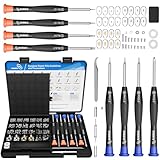
- Consider a Kit: Buying a general PC screw kit can save you hassle down the line. They often contain a good mix of common sizes. I keep one in my toolbox for exactly these kinds of emergencies. It cost me about $15 and has saved me hours of frustration.
I once had to build a PC using only screws I salvaged from old electronics – think floppy drive screws and CD-ROM drive screws. It was a Frankenstein build, but it worked! The point is, there’s almost always a way to find the right screws, you just have to be resourceful. Don’t let a missing screw stop your build.
The Verdict: What to Expect and What to Buy
Let’s lay it out plainly. The answer to ‘does screws come with computer parts’ isn’t a simple yes or no. It’s a spectrum, and frankly, it’s a bit of a mess designed to make you buy more things.
| Component | Do Screws Typically Come With It? | Where Do They Usually Come From? | My Verdict |
|---|---|---|---|
| Motherboard | No | PC Case | Always assume the case provides them. Get extras if you can. |
| Graphics Card (GPU) | No | PC Case (for rear bracket) | Case screws are all you need here. |
| 2.5″ SATA SSD | Sometimes (rarely) | PC Case or SSD Drive Bay | Check your case’s drive bays first. |
| M.2 NVMe SSD | Sometimes | Motherboard Accessory Bag | Important. If mobo doesn’t have one, buy an M.2 kit. |
| CPU Cooler (Aftermarket) | Yes (almost always) | Included with the cooler | Use only the cooler’s provided hardware. |
| Power Supply (PSU) | Yes (almost always) | Included with the PSU | Standard 4 screws. Don’t lose them. |
As you can see, it’s a mixed bag. The most common culprits for not including screws are motherboards and GPUs, relying on the case. Components that are more self-contained, like PSUs and aftermarket coolers, tend to pack their own hardware. The M.2 SSD situation is a particular pain point; you absolutely need that tiny screw to secure it properly, and if your motherboard doesn’t provide one, you’re stuck. (See Also: How To Adjust Eyeglass Screw )
My strongest piece of advice? When you buy a new PC case, treat that little bag of screws like gold.
Organize it. Label it. Because at some point, you will need those specific screws.
If you’re building a new PC, it’s worth buying a cheap, generic PC screw kit for about $10-$20. It’s far better than scrambling for a specific thread size at 2 AM when you’re two hours into a build. This has saved me countless times.
You’d be surprised how many times a case fan screw is the wrong length for a hard drive bay, or how a motherboard standoff has a slightly different thread than what you found in a random drawer. It’s worth the small investment for the peace of mind. If you’re upgrading, always check the manuals of your old and new components to see what mounting hardware is expected to come with each.
Don’t assume anything.
Do New Motherboards Come with Screws?
Generally, no, new motherboards do not come with screws. The screws required to mount the motherboard into your PC case, including the standoffs, are almost always provided by the PC case manufacturer. You should check the accessory bag that came with your computer case for these specific screws.
Do Graphics Cards Come with Screws?
No, graphics cards typically do not come with screws. They are designed to slot into the motherboard and then be secured to the rear of your PC case using a bracket. The screws for this bracket are usually included with your PC case, not the graphics card itself.
Do M.2 Ssds Come with Screws?
This varies. Many motherboards come with a small screw and standoff specifically for M.2 SSDs, often found in the motherboard’s accessory bag. However, some motherboards do not include them. If your motherboard doesn’t provide one, you will need to purchase an M.2 mounting screw kit separately, as the M.2 drive must be secured to function correctly.
What Kind of Screws Do I Need for a Pc Build?
The most common screws you’ll encounter in a PC build are M3 machine screws for mounting components like 2.5″ SSDs and some motherboard standoffs, and 6-32 UNC screws for securing power supplies and case fans. M.2 SSDs use a smaller, specific M2 screw. It’s always best to refer to your component and case manuals for the exact specifications.
Final Thoughts
So, to circle back to that initial panic: does screws come with computer parts? The short answer is: sometimes, but don’t bet on it for everything. Your case is usually the primary provider for mounting the motherboard and GPUs, while components like PSUs and aftermarket coolers bring their own hardware. M.2 SSDs are a gamble, and you absolutely need that tiny screw.
My biggest takeaway from years of tinkering is this: always have a stash of common PC screws. That little $15 screw kit I bought years ago has paid for itself ten times over in saved time and avoided frustration. Don’t let a missing screw derail your build or your upgrade. Be prepared, check your manuals, and when in doubt, buy a universal screw kit.
Next time you’re building or upgrading, do yourself a favor and spend five minutes verifying you have all the necessary screws before you even open the component boxes. You’ll thank yourself later.
![AXTH 25-in-1 Small Precision Screwdriver Set, Professional Magnetic Mini Repair Tool Kit for Phone, Computer, Watch, Laptop, Macbook, Ring Doorbell, Eyeglass, Electronic, [Bearing Steel] Screw Driver](https://m.media-amazon.com/images/I/518YlLmPTcL._SL160_.jpg)
